Window capture
Hover to highlight, Tab to cycle the stack. Transparency survives and the shadow is synthesised, not scraped off whatever was behind it.
 Flint Capture
Flint Capture / Features
The whole local feature set, with nothing held back for a higher tier. Every capability on this page is in the $19 build.
⇧⌘4 Capture
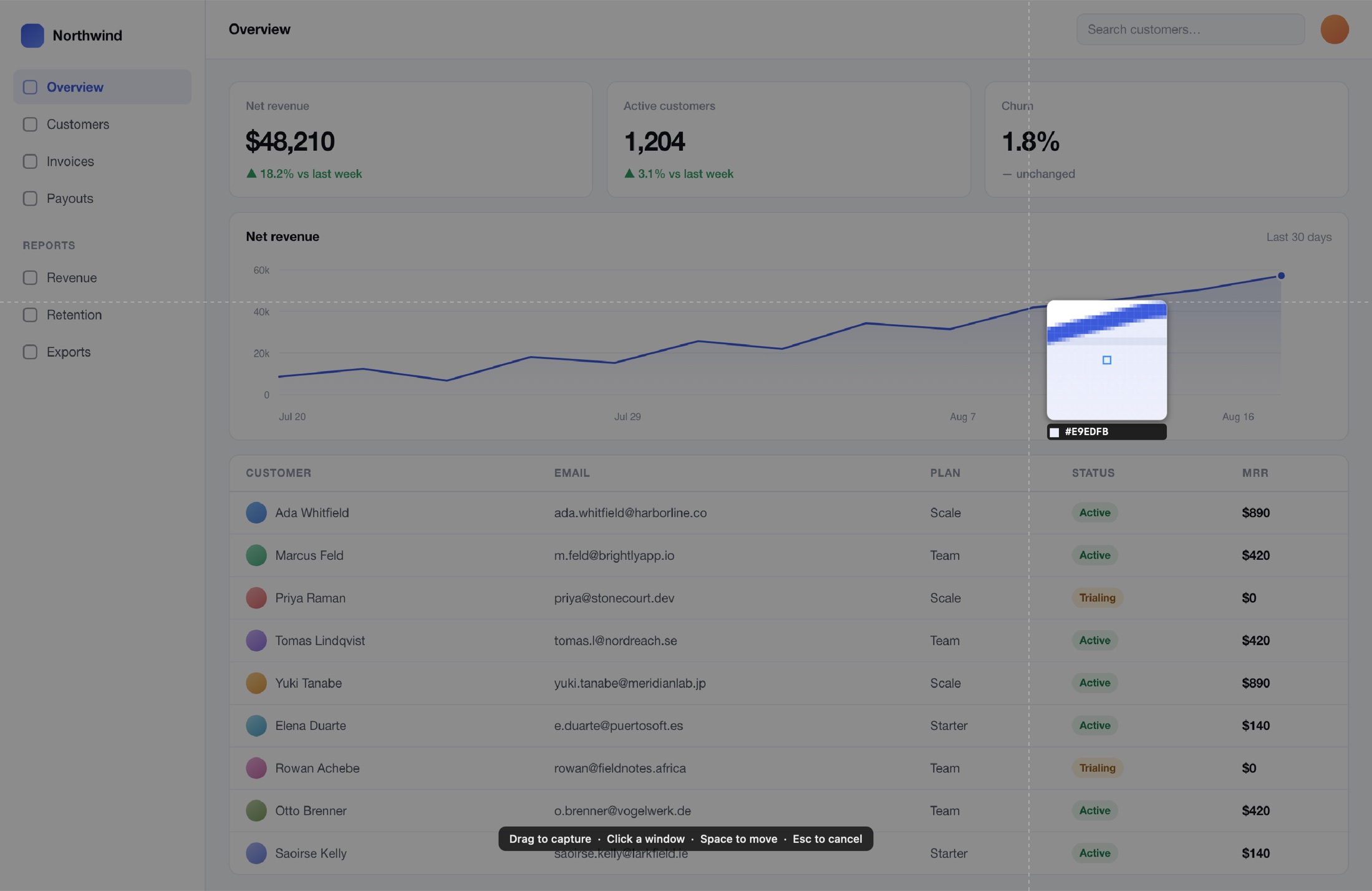
Every capture starts the same way: the screen freezes so nothing moves out from under you while you aim.
Drag once and the marquee is editable, not final. Eight handles resize it, the live badge reports exact pixel dimensions as they change, and rule-of-thirds guides appear inside the selection. What you keep stays at full brightness while everything else dims, so you can see precisely what you are about to take.
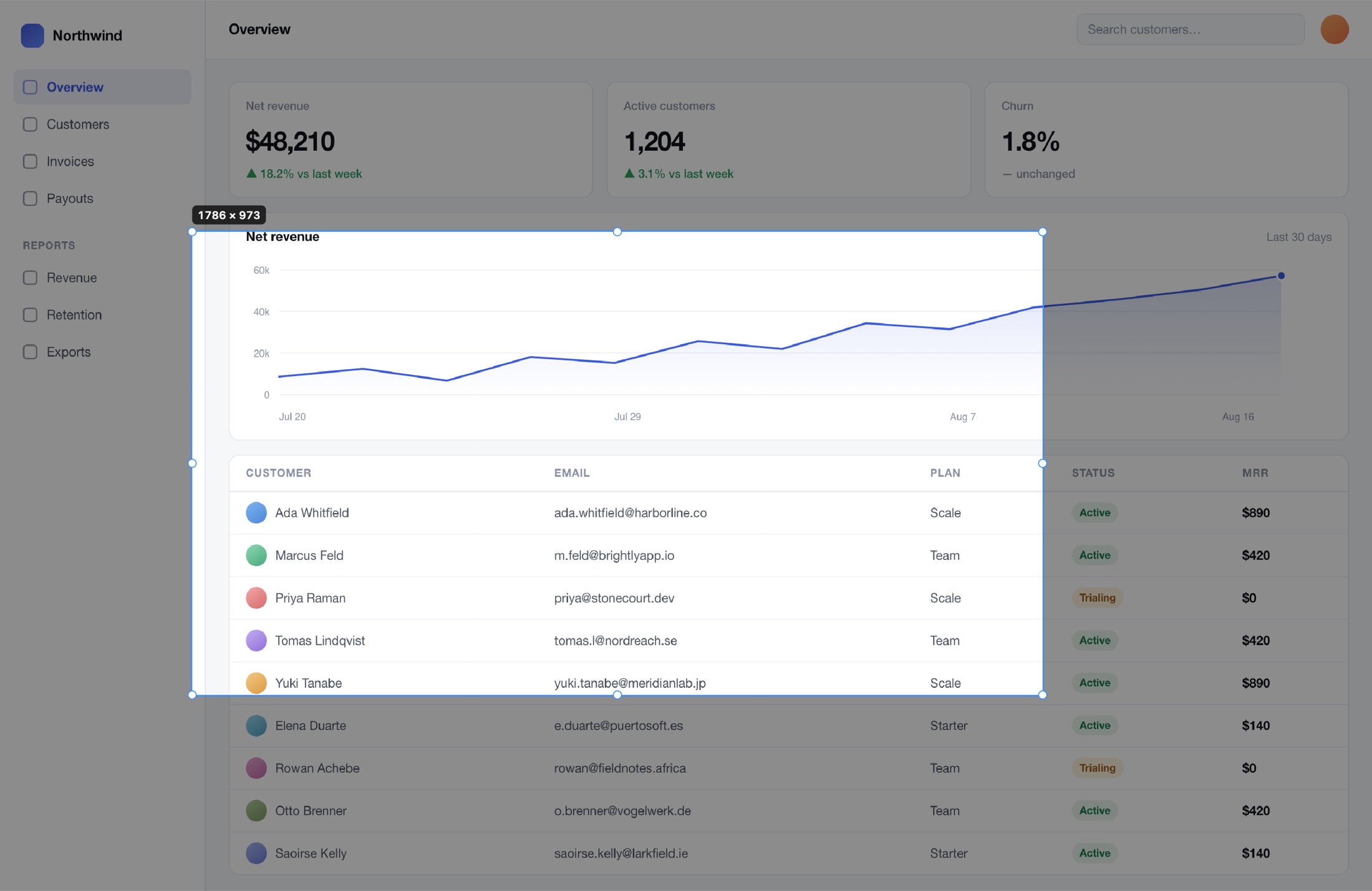
A loupe follows the cursor with a hex readout of the exact pixel underneath. It is the difference between "about there" and landing on the boundary you meant — and it doubles as a colour picker when the hex was all you wanted.
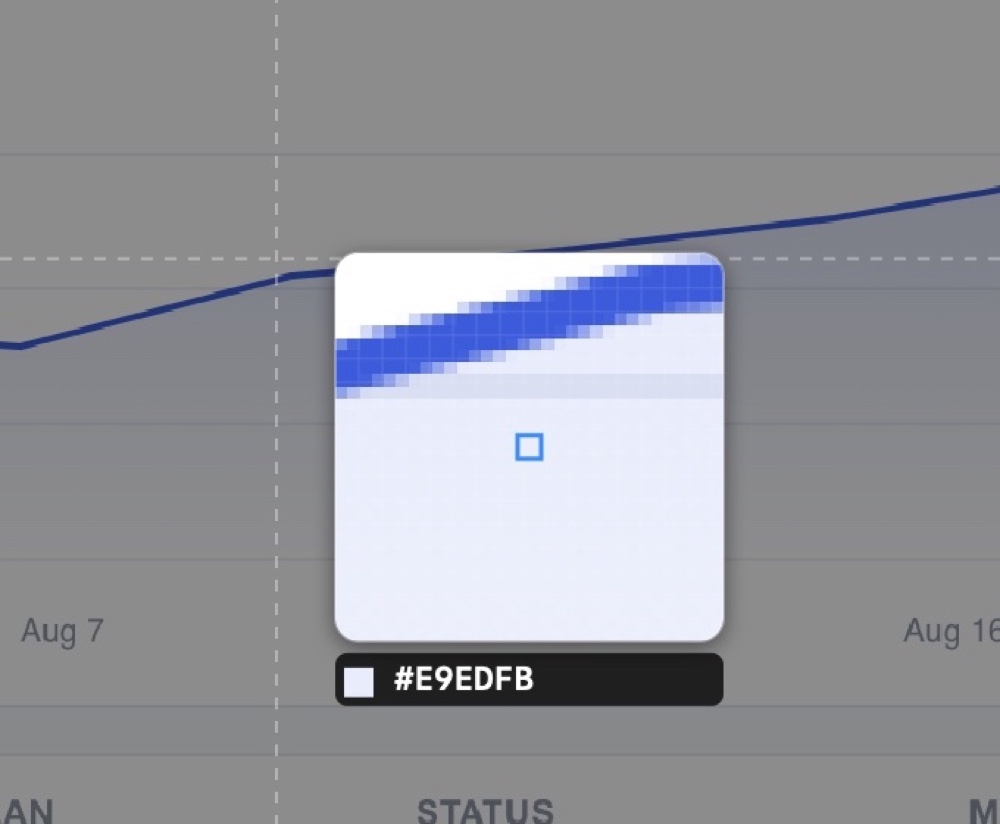
Hover to highlight, Tab to cycle the stack. Transparency survives and the shadow is synthesised, not scraped off whatever was behind it.
Each screen at its own scale factor, including a selection that spans two of them.
The window is scrolled for you and the frames stitched. When content is too featureless to align, it stops and says so rather than handing you a silently mangled image.
Drag once, then choose: screenshot, video, GIF or scrolling capture.
Re-shoot the exact region you used last, without re-aiming.
A countdown HUD for when you need both hands to set the shot up first.
⇧⌘4 Editor
The editor opens on the capture you just took. Every mark stays an object you can move, restyle and reorder right up until export — including the blur.

Adjustable head size and weight.
Shift constrains to the axis.
Outlined or filled, with a corner radius.
Shift for a perfect circle.
Freehand, smoothed as you draw.
Wide, translucent, no shadow.
Any installed font, any size.
Auto-increments and renumbers on reorder.
Dims everything outside the shape.
Adjustable radius, reversible until export.
Adjustable block size.
A solid bar, when blur is not enough.
Crop, annotate, then widen the crop again without losing a mark. Undo has no depth limit.
Arrow keys nudge, shift constrains, option duplicates, and every tool has a single-key shortcut.
Bring forward, send back — obscuring tools always draw beneath outlines, so your arrows stay visible.
One click
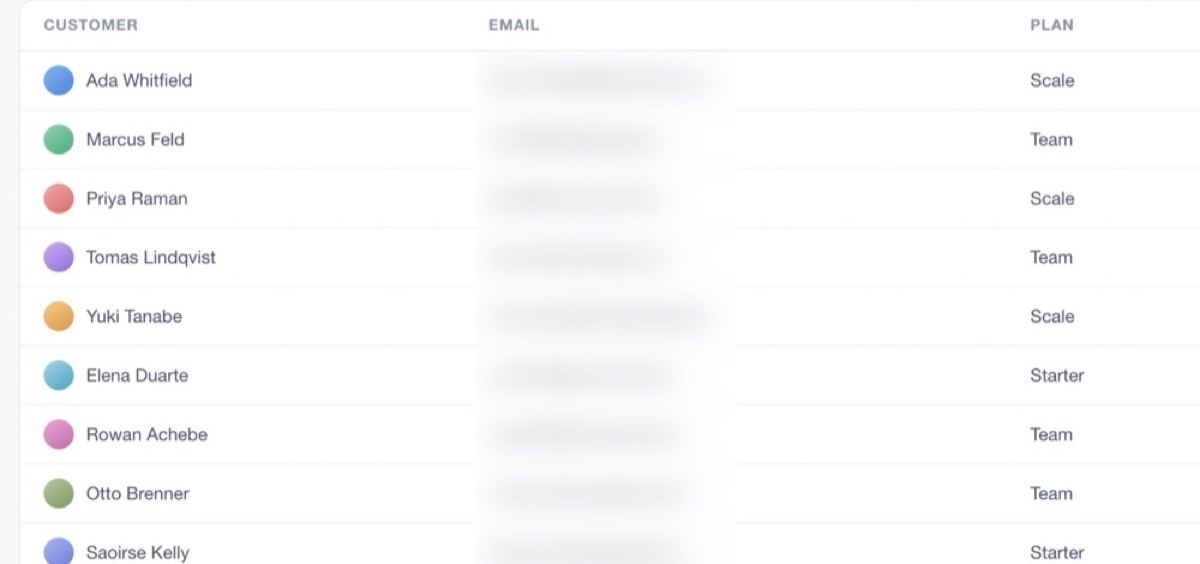
Flint Capture finds every text region itself and obscures all of them at once — blur, pixelate or a solid bar. No dragging a rectangle over each row and hoping you caught them all.
It runs on device with Vision. The screenshot never leaves your Mac to be scanned, which is rather the point when the thing you are hiding is customer data.
⇧⌘R Record
H.264 or HEVC to MOV, system audio and microphone together or separately — with the controls somewhere you can actually reach mid-take.

Record straight to GIF, or convert a finished video to one in the trim editor.
Click ripples and cursor highlighting — or hide the cursor entirely.
Circular or rounded, draggable and resizable while recording.
A filmstrip scrubber with in and out handles, a mute toggle, and export to video or GIF.
After the capture
Captures stack in the corner as cards. Drag one straight into Slack, Figma or a mail draft, or hit a quick action — copy, save, annotate, pin, reveal, delete — without opening anything at all.

Padding, a solid or gradient or desktop-wallpaper background, rounded corners and a drop shadow — saved as presets so you stop re-deciding every time. The image beside this is the app's own output, not a mockup of it.

Float a capture above everything, cycle opacity, click straight through it, or snap it back to actual size.
Thumbnails, search, filters by kind and context actions on every item.
Pull text out of any capture or region, on device, straight to the clipboard.
Date, time and app-name tokens, plus format, quality and a Retina toggle.
Hide desktop icons with a shortcut. They come back when the app quits.
No Dock icon, launch at login, permanently out of the way.
⇧⌘T Automate

Record one in place. Conflicts are surfaced rather than silently swallowed.
The binary doubles as a CLI. A second launch forwards its command to the running app and exits, so nothing steals focus — which makes it trivial to wire into Shortcuts, Raycast, Alfred or a shell script.
$ flint capture-area
$ flint scrolling-capture
$ flint record-gif
$ flint capture-text          # OCR to clipboard
$ flint pin-screenshot
$ flint --list                # every command
Setup
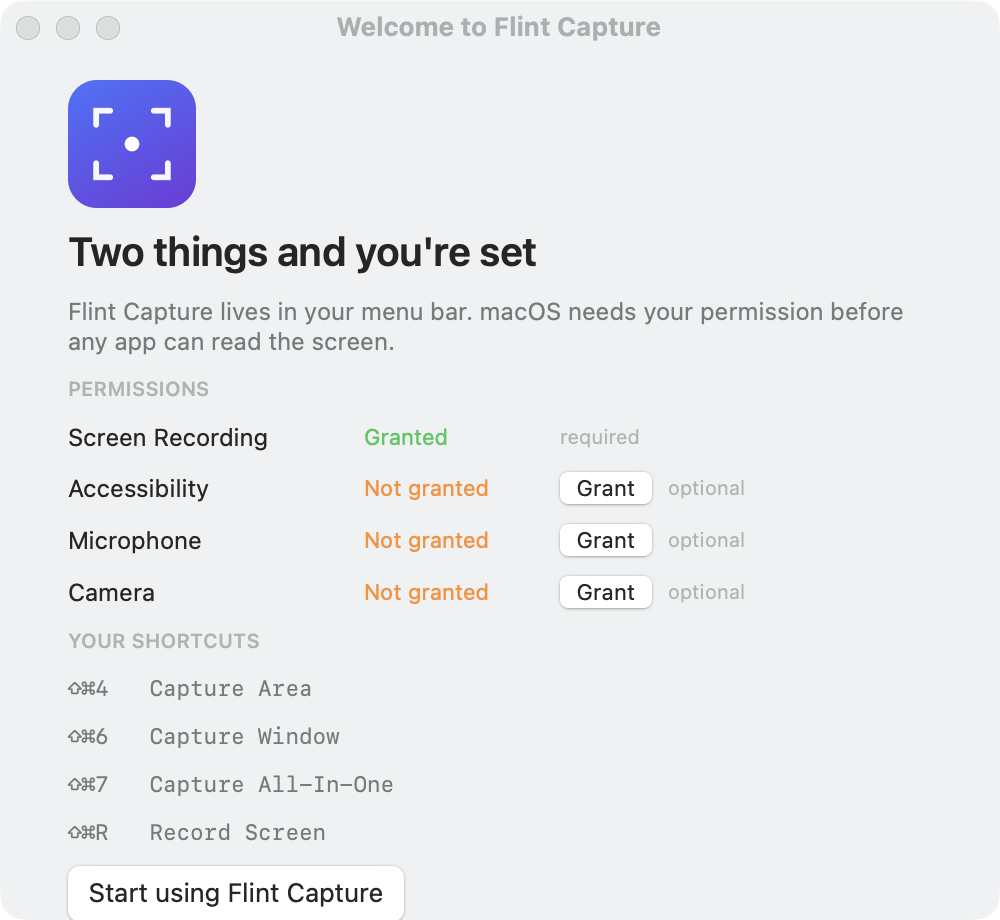
macOS gates screen capture behind a permission, and the welcome window walks you through it, polling until it is granted. Optional permissions are only ever requested the first time you use the feature that needs them — the app does not demand your camera on launch.
| Permission | What it unlocks |
|---|---|
| Screen & System Audio Recording | Everything. Nothing can be captured without it. |
| Accessibility | Scrolling capture only — the app scrolls the window for you. |
| Microphone | Voice-over on recordings. Optional. |
| Camera | The webcam overlay. Optional. |
14 days free, no card, no account. 1.8 MB.